You can download fraps at http://fraps.com
HERE IS HOW TO CONFIGURE FRAPS:
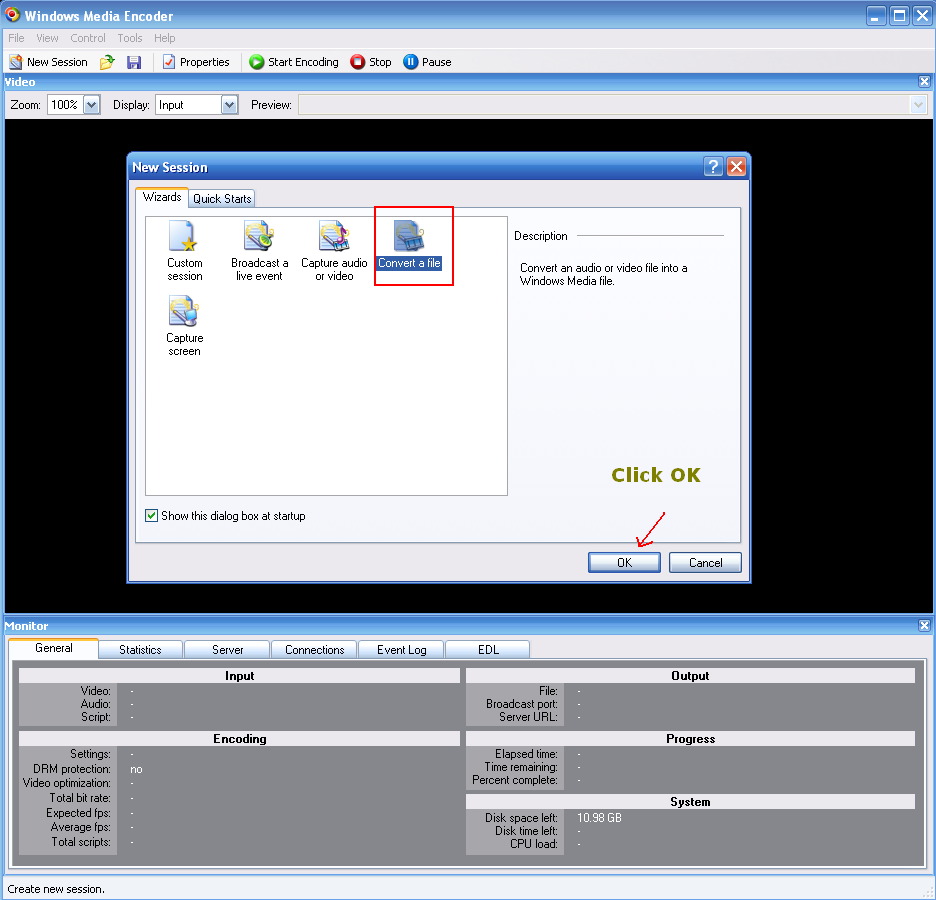
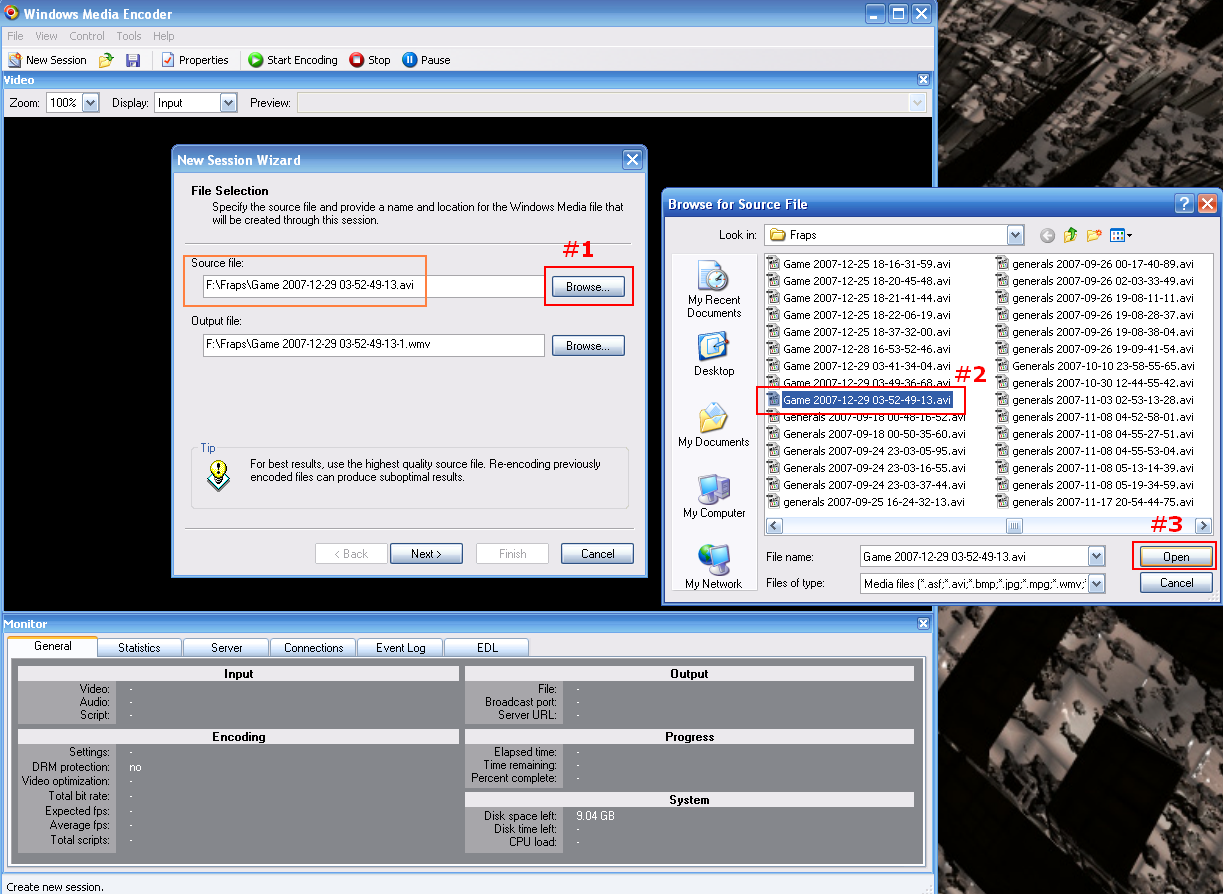
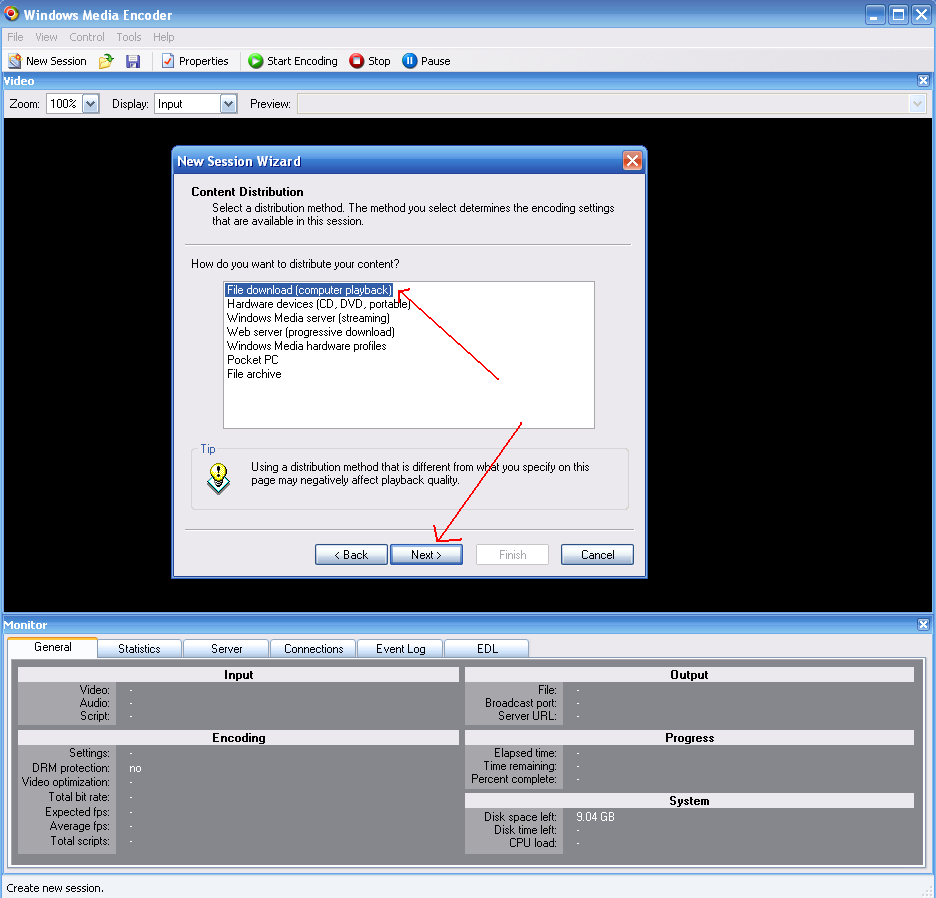
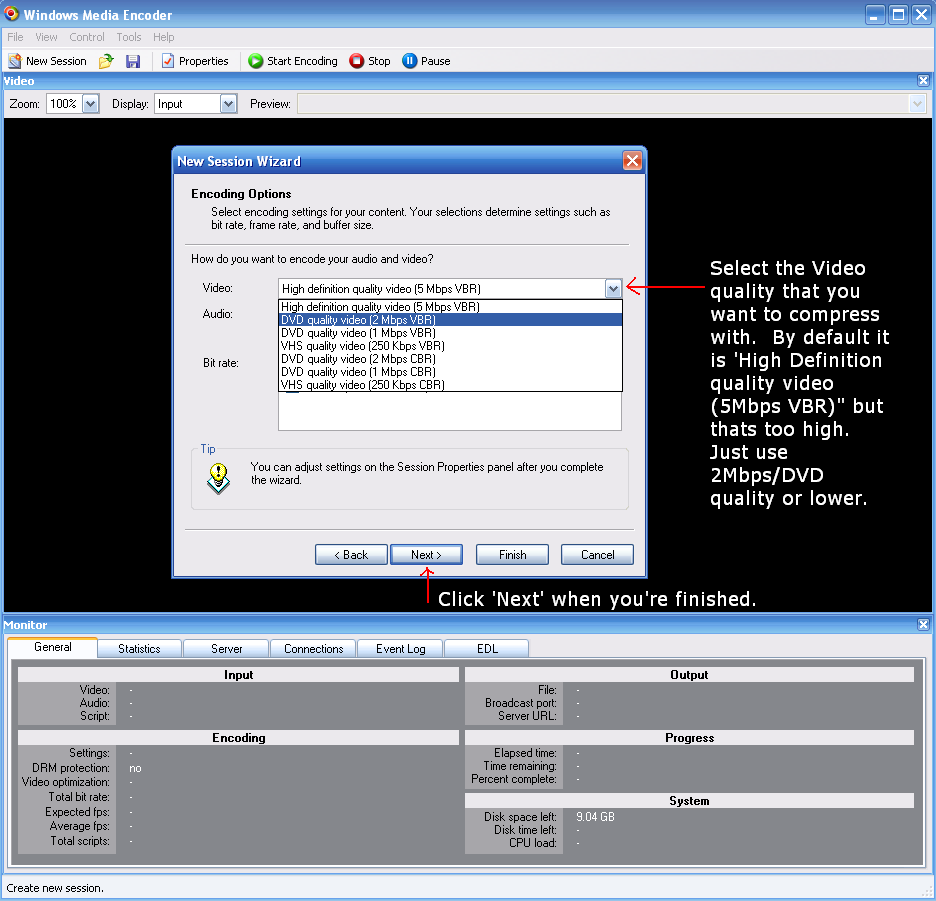
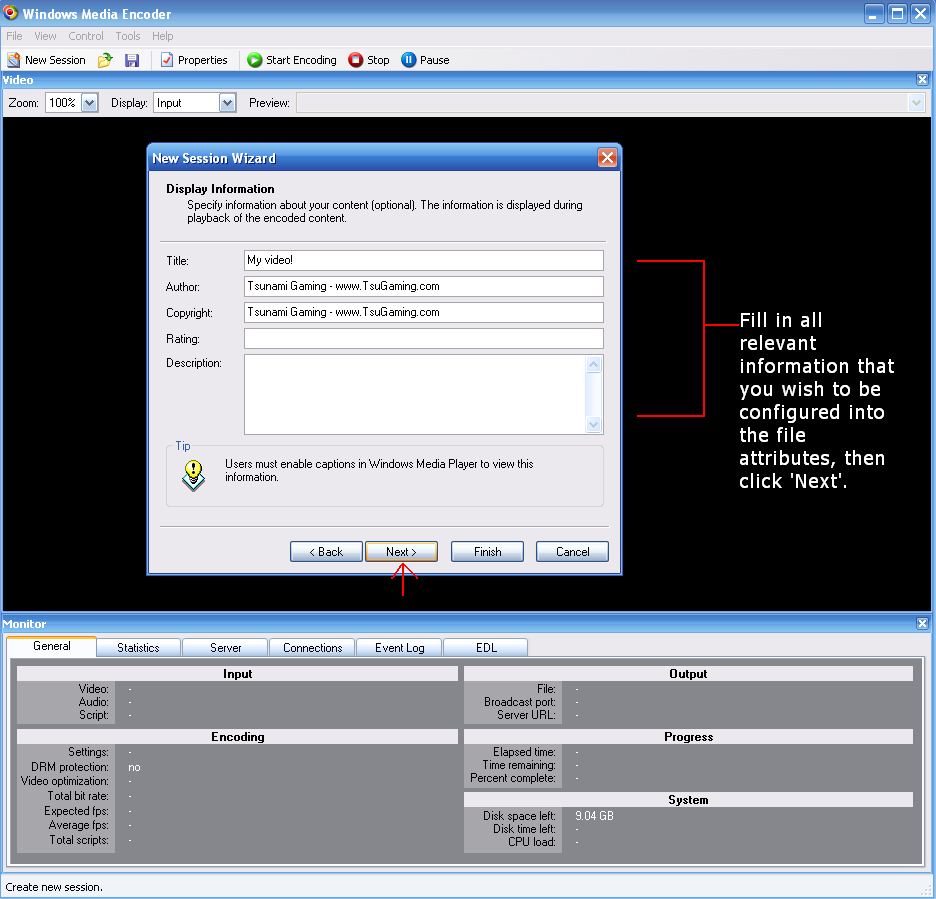
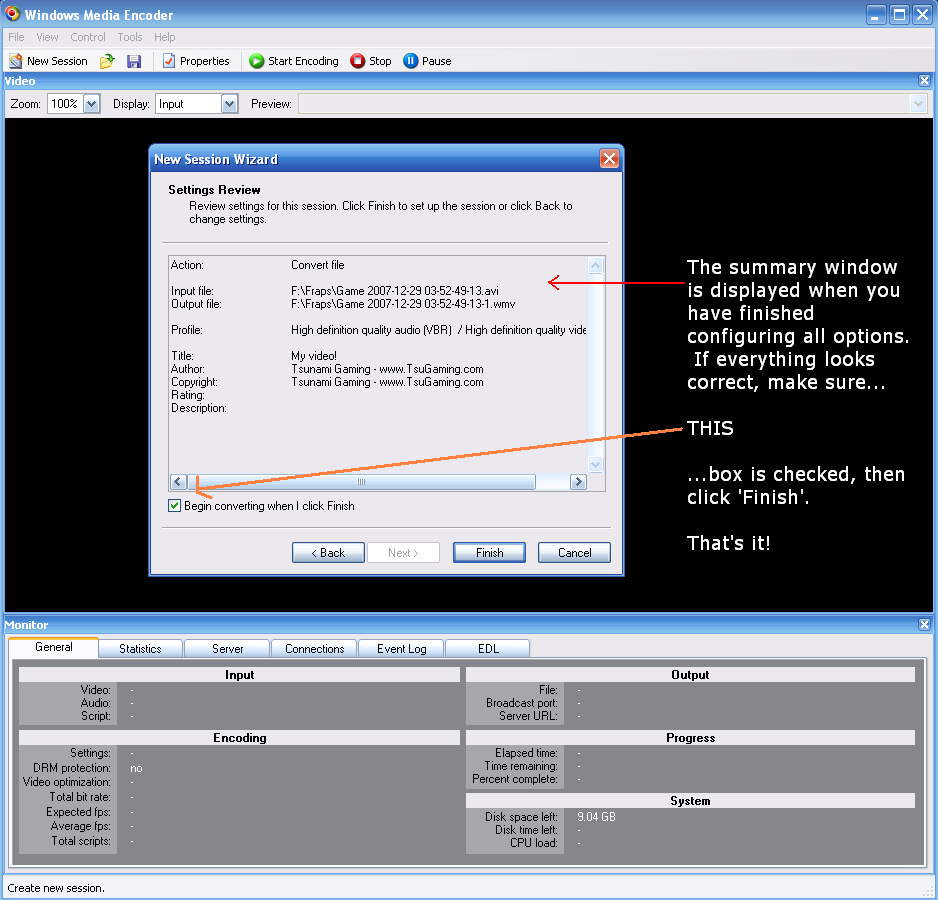
If you select to save a video and need to upload it, make sure you compress it first. Raw .AVI files are *HUGE* and will take forever to upload/download. To compress a raw .AVI file (which is the format that FRAPS outputs) you should use Windows Media Encoder.
HERE IS HOW TO COMPRESS A FRAPS VIDEO USING WINDOWS MEDIA ENCODER:
http://www.tsugaming.com/images/MediaEncoderFiles/1.PNG
http://www.tsugaming.com/images/MediaEncoderFiles/2.PNG
http://www.tsugaming.com/images/MediaEncoderFiles/3.PNG
http://www.tsugaming.com/images/MediaEncoderFiles/4.PNG
http://www.tsugaming.com/images/MediaEncoderFiles/5.PNG
http://www.tsugaming.com/images/MediaEncoderFiles/6.PNG
UPLOADING TO TSUGAMING
To upload a file (screenshot, video, etc.) to TsuGaming.com:
- Log in to TsuGaming.com with a registered account. If you're not registered, please take the time to register. Guests cannot upload files.
- Create a new topic. Near the bottom where you hit 'Submit' there is a section that says 'Upload attachment'. Next to 'Filename' click the Browse button and find the file you want to upload. Once you've found it/selected it, click OK and it will show up as a path in the 'Filename' field. You may add a comment if you wish.
- Click the 'Add the file' button. A small popup window will appear showing the progress of this upload. Be patient while the file uploads to the server. Once it has uploaded you will see a dropdown box appear in "Attachments" under the area that you type in. If you'd like to display this file inline (in the body of your post) then click 'Place inline'. Otherwise, just hit 'Submit' below and your post will be made with the file attached to the bottom.
Thats it!