


For this reason I have decided to create a concise tutorial on utilizing the power of our forum system:
(note: in this tutorial I refer to features organized in the default template. If you're using a different template or the clan/subsite that you visit has their own template, some things may be a little different)
Under the main banner (graphic at the very top) there is a menu bar. On it you will see items such as 'User Control Panel', '0 new messages', 'FAQ', 'Search', 'Members', 'Logout', etc. This menu bar is displayed on every page in the entire forum system.
SITE MENU TOOLBAR
- The first item on the site menu bar is the User Control Panel (or UCP). If you click on this item you will be brought to a page that allows you to manage things such as forum subscriptions, your profile, private messages, your preferences, buddy lists, etc. So as you can imagine, the UCP is ... YOUR ... control panel.
- The '0 new messages' part is just a shortcut to your Private Messages (PM) inbox. This can also be accessed through the UCP.
- FAQ is a forum software "FAQ" (Frequently Asked Questions) which provides answers to some of the most popular questions asked about our forum system. Everyone should take the time to check it out when they have time.
- Search is a built in feature which allows you to search for post topics, post authors, etc. Pretty straight-forward.
- "Members" is nothing more than a memberlist. This memberlist is not a clan roster or anything like that. It is simply a huge list of all of the gamers that have taken the time to register on our forum system. You can view their profile, send them private messages, and much more from here.
- The logout button is also pretty straight-forward; but something worth noting is that if you are not logged in your post count wont go up when you post and you may not be able to see many of the forums (such as private clan member only forums or staff forums). Also, though guest posting IS allowed on many forums you have very little rights - so your best bet is to register an account and make sure you're logged in while posting.
INFO TOOLBAR
Just below the site menu bar there is an info bar (information toolbar) that provides shortcut links to all posts that you haven't read yet or the most active topics. You can also view all of your own posts by clicking 'View your posts'. This is helpful when you've forgotten where you posted.
NAVIGATION TOOLBAR
Below the site menu bar and info bar is the navigation toolbar.
The navigation bar looks like this:

This is a VERY important part of the Tsunami Gaming forum system as it helps explain exactly where you are at in the directory structure as well as give you links on stepping backwards or up one level.
The start of the forums is known as the "Board Index". You can see this on the far left. The little >> symbols mean that the item to the right of it is a sub-forum/sub-category of the item to its left. So, going back to our example picture above, you can see that the "TSUNAMI GAMING NETWORK (TGN)" is a category of "Board Index" because it is to the right of it. Inside of that are many other categories and forums such as "Off-Topic Discussions". Inside of that category is a forum called "HI, IM NEW!".
If we were to draw all of this out vertically rather than horizontally, it would look something like this:
Board Index
----TSUNAMI GAMING NETWORK (TGN)
--------Off-Topic Discussions
-------------HI, IM NEW!
So if you very quickly wanted to see other "Off-Topic Discussions" you could just click on that link in the navigation bar and it would open that category along with all of the forums inside of that category. Pretty simple actually. For those who have a lot of categories and forums to check, you can go back one item at a time (clicking "Mark All Topics Read" if you dont feel like reading all of the topics in the current forum). And just keep going backwards until you're at the start/main page.
Understanding the navigation menu and using it to move around can greatly help your posting efficiency and save you quite a bit of navigational time and confusion.
PARTS OF THE FORUM LIST
The are a few important (and sometimes overlooked) things to understand when looking at the list of forums. In the diagram below, you can see these components and their importance:
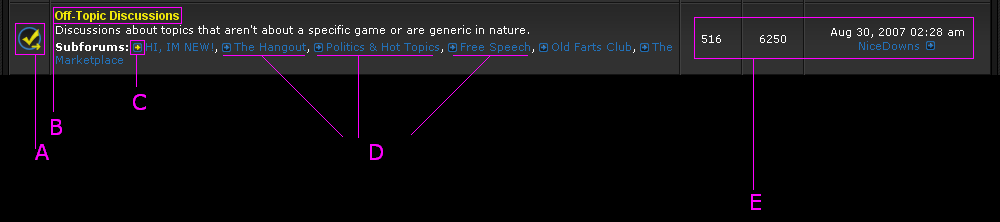
- A = New Posts. If this is lit up or has something here, then there is a new post somewhere in this forum (or its subforums).
- B = The name of the forum. In this case, the parent forum's name is "Off-Topic Discussions" and it has six subforums (a few are pointed out in item D in the diagram). If there are new posts somewhere in the forum (or its subforums) the name of the forum is usually lit up, bolded, or colored.
- C = New Post in subforum. If this is lit up or colored (different in other themes) it means that there is a new post in this subforum. If it is not lit up or colored then there are no new posts.
- D = Subforums. A subforum is the same thing as a forum except its is a forum inside of another forum. So in the diagram above you can see that the subforum "The Hangout" is a forum inside of the forum "Off-Topic Discussions".
- E = Statistics/Information. This section of the forum shows you the total number of posts and reads for that forum (overall) and the last person to post.
POSTING
Posting doesn't take rocket science so I won't talk about this too long. But there are some features that could make your posts a little more exciting if you know how to use them.
Posting Diagram:
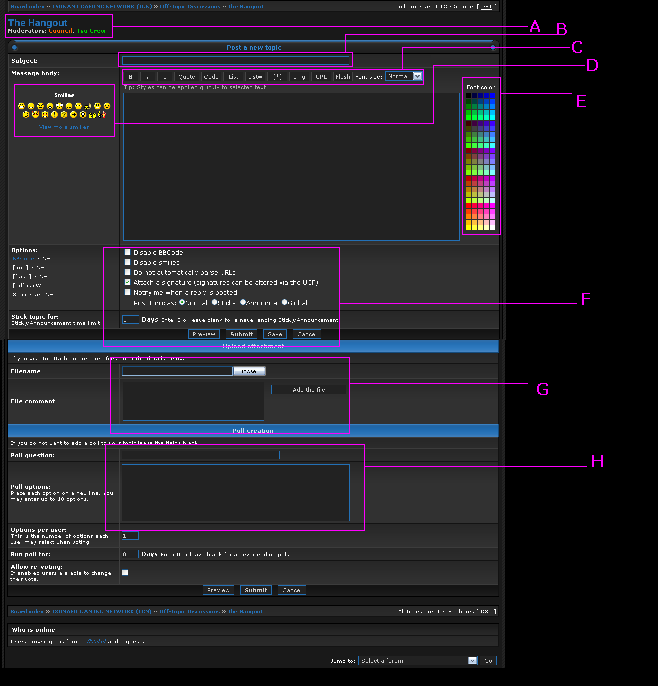
- A = The name of the forum you're about to make a post in. Underneath it are the names of the moderators for this forum. If you need to report a post, get help with a feature, or want to have your topic stickied, they're the people to ask.
- B = Subject (or title). This is where the subject of the thread (or post) is placed. By default, all posts after the first one use the subject of the 1st post. You CAN change this if you'd like.
- C = Formatting toolbar. This is used to make your text either bold, italicized, underlined, larger, smaller, organized into bullets (like this A,B,C,D thing Im typing in right now), etc. Pretty much everything except for color coding. To format text, just highlight what you want to format and click a button. Formatting requires a starting tag at the beginning of what you want to format and a closing tag at the end of what you want to format. For more help with this, check out the FAQ.
- D = Smiles. Many are shown there, but many more are hidden (you have to click the link under the smiles to see all of the smiles). All you have to do is click on one and it puts it into your message wherever your cursor is. Pretty easy. Smiles are a great way to show an expression or add life to a post.
- E = Color palette. This is like your magic paintbrush. You highlight the text you want to color, then click on the color you like. You can use any HTML color code (even if its not shown to the right).
- F = Additional posting settings. For the most part, this is either a preference or mod features (or combination of the two). For example, if you have selected to disable BBcode in your preferences, then "Disable BBCode" will be checked every time you post. If this is a special post and you want BBCode enabled, then you can uncheck that box just for this time. Same with a signature: if you have a signature but don't want it shown in one post, just uncheck "Attack a signature". You can also select the option to "Notify me when a reply is posted" so that the forums send you an email whenever someone replies to your topic.
- G = Attachments. This is where you would upload attachments. Simply click on the browse button, find the file you want to upload, click OK, add a comment if you want, then click on "Add The File". The page will then refresh and you'll see the name of your file listed there. Once you have your post ready and attachments ready, you can then hit Submit and submit both your post and your attachments. Any images that are attached to a post are automatically displayed at the bottom of your post.
- H = Polls. If you have permissions to create polls (most registered users do have this right) you can enter a poll topic and then poll options. Put one option per line. You can also select how many options people can vote on as well as whether or not the poll as a time limit (expiration).
If YOU have any tips or suggestions for the other forum users, please add it below. Anything that is not a tip, suggestion, question, etc. will be removed since this is an "INFO" topic.

